Scrum software is a tool that runs the Scrum framework for you: a product backlog you can rank, sprints with fixed dates, a board for the sprint backlog, and reports that show whether the team will finish what it committed to. Most teams use a general issue tracker with a scrum mode, such as Jira, Azure DevOps, YouTrack, Linear, ClickUp, monday dev, Zenhub or Plane, and they differ less in the board than in what sits around it: which plan holds the burndown and velocity reports, how unfinished work moves to the next sprint, and whether capacity is counted per person or per team.
We looked at eight tools and judged each by how a team runs a single sprint in it, from planning to the retrospective, which plan holds each report and what it costs. We read vendor material and did not run these products.
What is scrum software?
Scrum software is project software that's built around the Scrum roles, events and artifacts. The Scrum Guide defines a sprint as a fixed period of one month or less, with Sprint Planning at the start, a Daily Scrum of 15 minutes, a Sprint Review and a Sprint Retrospective at the end. The team commits to a Sprint Goal and works from a Sprint Backlog that it pulls out of the Product Backlog, which the Product Owner orders.
A tool supports that in four places. It holds the ranked product backlog, it turns a slice of the backlog into a dated sprint, it shows the sprint backlog as a board, and it reports progress through a burndown chart, a velocity chart or both. Everything else, including roadmaps, time tracking and dashboards, isn't required for Scrum and sits on higher plans in most of these tools.
Good scrum software also handles the awkward parts of a timeboxed iteration: overcommitment at planning, scope creep after the start, rollover of unfinished items, cooldown gaps between sprints and a capacity forecast built from past velocity. Those are the places where the eight tools below differ most.
Best scrum software by situation
The best scrum software depends on where your work already lives and on how much reporting you need. Jira and Azure DevOps cover the full set of sprint reports, Linear and Zenhub automate the sprint cycle, YouTrack and Zenhub run sprints at no cost for small teams, and ClickUp and monday dev add sprints to a broader work tool.
 Best when Jira already tracks your engineering workJiraSprint report with overcommitment and scope creep, burndown and velocity chart. Capacity planning needs Premium at $19.60.
 Best for planning sprints in hoursAzure DevOpsCapacity tab with hours per person per day, burndown, velocity and a forecast tool. Free for the first 5 users, then $6.
 Best free sprint board for up to 10 peopleYouTrackSprint goal, burndown on issue count, estimates or logged work, and a setting that carries unresolved issues into the next sprint.
 Best for cycles that create and roll over themselvesLinearAuto-created cycles of 1 to 8 weeks, automatic rollover and a capacity estimate drawn from the last three cycles.
 Best when sprints live inside a broader work toolClickUpSprints on every plan; sprint points, burndown, velocity and rollover automation start on Business at $17.
 Best for automatic sprints with a retrospectives boardmonday.comSprints that start and complete on their own, burndown and velocity in Agile Insights, from $9 with 3 seats minimum.
 Best for teams that live in GitHubZenhubSprints, planning poker and a velocity report on a free plan, built on GitHub Issues.
 Best open-source tracker with cyclesPlaneCycles with burn-down by assignee, state or label; progress charts and GitHub sync from Pro at $6.
How the eight tools compare
| Tool | How it runs a sprint | Starting price | G2 rating |
|---|---|---|---|
| Jira | Sprints from the Backlog tab, sprint report, burndown and velocity chart; capacity planning on Premium | Free up to 10 users; Standard $9.70, Premium $19.60 per user per month (1 to 100 users) | 4.3 (7,964) |
| Azure DevOps | Sprints as iteration paths, taskboard, hours-based capacity, burndown, velocity chart and forecast | Free for the first 5 users, then $6 per user per month | 4.2 (G2 (Azure DevOps Server), 201) |
| YouTrack | Agile board with sprints, sprint goal and a burndown on issue count, estimates or logged work | Free up to 10 users; from $4.50 per user per month billed yearly above that | 4.2 (59) |
| Linear | Cycles of 1 to 8 weeks that create themselves and roll unfinished issues forward; cycle graph | Free (2 teams, 250 issues); Basic $10, Business $16 per user per month billed yearly | 4.6 (125) |
| ClickUp | Sprint folders with a backlog list; points, burndown, burnup, velocity and rollover automation on Business | Free; Core $9, Business $17 per user per month billed yearly | 4.6 (15,779) |
| monday.com | Sprints that start and complete automatically, burndown and velocity in Agile Insights, retrospectives board | Basic $9, Standard $12 per seat per month billed yearly; 3 seats minimum, no free plan | 4.7 (17,969) |
| Zenhub | Sprints on GitHub Issues with planning poker, sprint goal, optional rollover and a velocity report | Free; Teams $4.99 per user per month billed yearly | 4.3 (35) |
| Plane | Cycles with burn-down by assignee, state or label; auto-scheduling and auto-transfer on Business | Free (12 users); Pro $6, Business $13 per user per month billed yearly | 4.4 (21) |
 The Program Manager Our product | Maps dependencies across Jira and Asana and watches milestones for risk | Team from $59 per workspace per month; card required at checkout | No reviews yet |
List prices in USD from the vendor pages, checked November 2026. G2 ratings are shown as listed at that time.
Jira, Azure DevOps and YouTrack suit teams that already run a bug tracker next to the sprints, Linear and Zenhub keep the sprint cycle itself light, and ClickUp and monday dev suit teams that also plan non-engineering work. For a wider look at general project tools see project management software.
Where burndown, velocity and capacity sit on each plan
Sprint features sit on different tiers, and the same report can be free in one tool and a Business-plan feature in another. The table shows where each one starts.
| Tool | Burndown | Velocity | Capacity | Unfinished work at sprint end |
|---|---|---|---|---|
| Jira | Sprint burndown; no plan limit in Atlassian's docs | Velocity chart; no plan limit in Atlassian's docs | Premium and Enterprise, per team | You pick backlog, a future sprint or a new sprint each time |
| Azure DevOps | Basic access, in hours | Basic access, story points; forecast tool | Basic access, hours per person per day | Moved by hand to a future sprint or left in the backlog |
| YouTrack | Chart tab, by issue count, estimates or logged work | Burndown used as the measure; no separate report | No capacity view in the help pages | Setting adds unresolved issues when you create the next sprint |
| Linear | Cycle graph on every plan | No named report; Insights on Business | Estimate from the last 3 cycles | Rolls to the next cycle automatically |
| ClickUp | Dashboard card on Business | Dashboard card on Business | Workload view | Prompt at closing; automatic rollover on Business |
| monday dev | Auto-started sprints only | Agile Insights, auto-started sprints only | Capacity on each sprint, Basic | Keep, next sprint or backlog, chosen at setup |
| Zenhub | Sprint report, estimated issues only | Velocity report on Free, last 7 closed sprints | Sprint size suggested from velocity | Optional toggle moves it to the next sprint |
| Plane | Cycle progress charts from Pro | Not in the cycle docs | Not in the cycle docs | Manual; automatic transfer on Business |
Only Jira states a plan for capacity planning in its own documentation, and only ClickUp and Plane put their burndown behind a named paid plan, so those are the entries to read before you budget.
ClickUp- Free Forever ($0)Sprints as folders and lists, with a backlog list; no sprint points
- Core ($9)Sprint points on trial only; no sprint cards for burndown or velocity
- Business ($17)Sprint points, burndown, burnup and velocity cards, plus sprint automations for rollover, new sprints and archiving
- Max ($100)The tier above Business; the sprint reports in this list start one tier lower
What eight people pay a month
Seat prices hide two things: free tiers that cover a small team, and the plan you'll need for the reports. The table prices a team of eight on the cheapest plan that holds sprints plus burndown or the closest equivalent.
| Tool | Plan | Per user per month | Eight people per month |
|---|---|---|---|
| YouTrack | Cloud, up to 10 users | $0 | $0 |
| Zenhub | Free, with 2 repos and 250 issues | $0 | $0 |
| Azure DevOps | Basic, first 5 users free | $6 | $18 (3 paid users) |
| Zenhub | Teams, billed yearly | $4.99 | $39.92 |
| Plane | Pro, billed yearly | $6 | $48 |
| Jira | Standard, list price | $9.70 | $77.60 |
| Linear | Basic, billed yearly | $10 | $80 |
| monday dev | Standard, billed yearly | $12 | $96 |
| ClickUp | Business, billed yearly | $17 | $136 |
Totals are list prices in USD and exclude taxes and add-ons. Jira's figure is Atlassian's list price for 1 to 100 users. monday dev needs at least 3 seats and has no free plan. Linear's Free plan covers 2 teams and 250 issues, which a team that runs sprints can reach quickly.
What a two-week sprint needs from the tool
A sprint repeats the same five moments, and the tool matters at some of them far more than at others. The rows below follow a two-week sprint.
- Product OwnerOrders the product backlog so the top items are small enough to plan Before Sprint Planning
- Scrum TeamSprint Planning: write the Sprint Goal, pick items from the backlog and size them in story points or hours Day 1
- DevelopersDaily Scrum of 15 minutes; move cards on the board and update remaining work Every day
- Scrum MasterWatch the burndown for scope added mid-sprint and for a flat line Mid-sprint
- Scrum TeamSprint Review of the increment, then the Sprint Retrospective with action items Last day
Scrum software should also expose the iteration length, the sprint-length drift between teams and any undone work left at the Sprint Review. Three of those moments depend on the tool, and it's worth knowing which. Planning needs a ranked backlog, estimates and, ideally, a capacity figure. The mid-sprint check needs a burndown that counts scope added after the start. The last day needs a clear answer to where unfinished items go and a place to write down retrospective actions. Only monday dev ships a retrospectives board, Jira offers a Confluence page when you complete a sprint, and the other tools leave the retrospective to a doc or a whiteboard.
Eight scrum tools reviewed
Each entry follows one sprint: how you plan it, how you run it, and what you get when it ends, with the plan you need and who should skip it.
Jira
Jira
Sprint report, velocity chart, Premium capacity
Jira fits teams that already track engineering work in Jira and want a sprint report that shows scope creep and overcommitment next to a velocity chart.
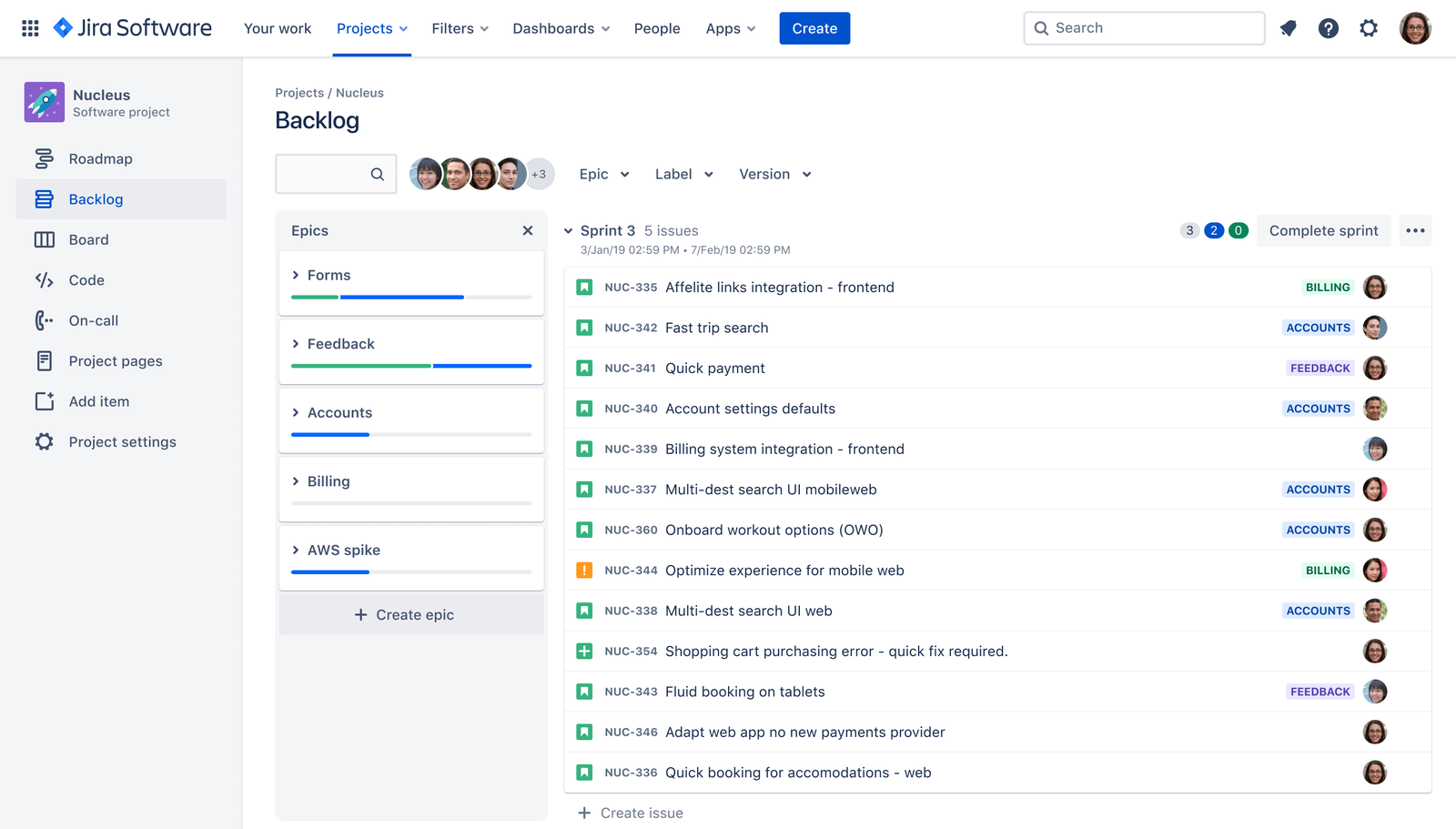
Planning: you create a sprint from the Backlog tab with Create sprint, and sprints sit as lists above the backlog where you can rename, reorder and date them. A sprint can't start without at least one work item. Company-managed boards offer an estimation dropdown with story points or time, plus an optional second tracking method for remaining estimate and time spent, and team-managed spaces keep estimation off until you switch it on under Features. An optional sprint goal is added when you start the sprint.
Running it: the board's workflow can go beyond To do, In Progress and Done, but an item counts as complete only in the last column. The sprint burndown plots work completed against work remaining in story points when estimation is on and by work item count otherwise, and it ignores subtasks.
Ending it: when you complete a sprint, you choose where unfinished items go, the backlog, a future sprint or a new sprint, and nothing moves on its own. Completing a sprint also offers to create a retrospective page in Confluence, which is a separate product. Capacity planning is the piece that needs Premium: it counts an item against an iteration only if it has a team, a sprint and an estimate, and it splits a team's capacity evenly across its members.
- you want the sprint report's overcommitment and scope creep view next to a velocity chart on the same board
- you need capacity planning across several teams and iterations, which Premium and Enterprise add
- you want capacity per person: Premium splits a team's capacity evenly across its members
- you want unfinished work to move into the next sprint on its own: Jira asks you to choose a destination every time you complete a sprint
- Users like
- ease of use (1,157 mentions in G2's pros summary) and flexibility (857)
- Users dislike
- the learning curve (682 mentions), interface complexity (504), difficulty for new users (455), feeling overwhelmed (344) and slow performance on large projects (327); the first four overlap
- Source: G2, 7,964 reviews
- Starting price
- Free up to 10 users; Standard $9.70 and Premium $19.60 per user per month (list prices for 1 to 100 users)
- WIP limits
- Min and max per column; header turns red or yellow, moves are not blocked
- Other reviews
- TrustRadius 8.4 of 10 (4,390 ratings), Software Advice 4.4 of 5, checked 2026-10-26
- Price update
- List prices rose again on October 13, 2026: Standard $9.05 to $9.70, Premium $18.30 to $19.60 per user per month (1 to 100 users); Atlassian's 2025 increase was 5 percent Standard, 7.5 percent Premium
- Free plan
- Up to 10 users, 2 GB storage, 150 automation steps per subscription per month, community support
- Capacity in Plans
- Premium and Enterprise only: per-team sprint capacity, split equally across team members; plans need boards as work sources and estimates
- Capacity view
- Announced 27 July 2026, Premium and Enterprise: weekly allocations per person, fixed 40-hour week, over 100 percent is flagged, not blocked
- Sprint goal
- Optional, set when starting the sprint
- Retrospective
- Confluence page offered on completion
Azure DevOps
Azure DevOps
Hours-based capacity and velocity forecast
Azure DevOps fits teams that plan sprints in hours, with a capacity tab per person and a velocity forecast, and it costs nothing for the first five users.
Planning: a sprint is an iteration path. Projects ship with predefined undated sprints, and you set the dates from Boards, Sprints and Backlog. The Planning pane shows the current sprint and the next ten future sprints, and drag and drop ranks the backlog and assigns items to sprints. Backlog items carry Story Points, Effort or Size, while tasks carry Original Estimate and Remaining Work in hours.
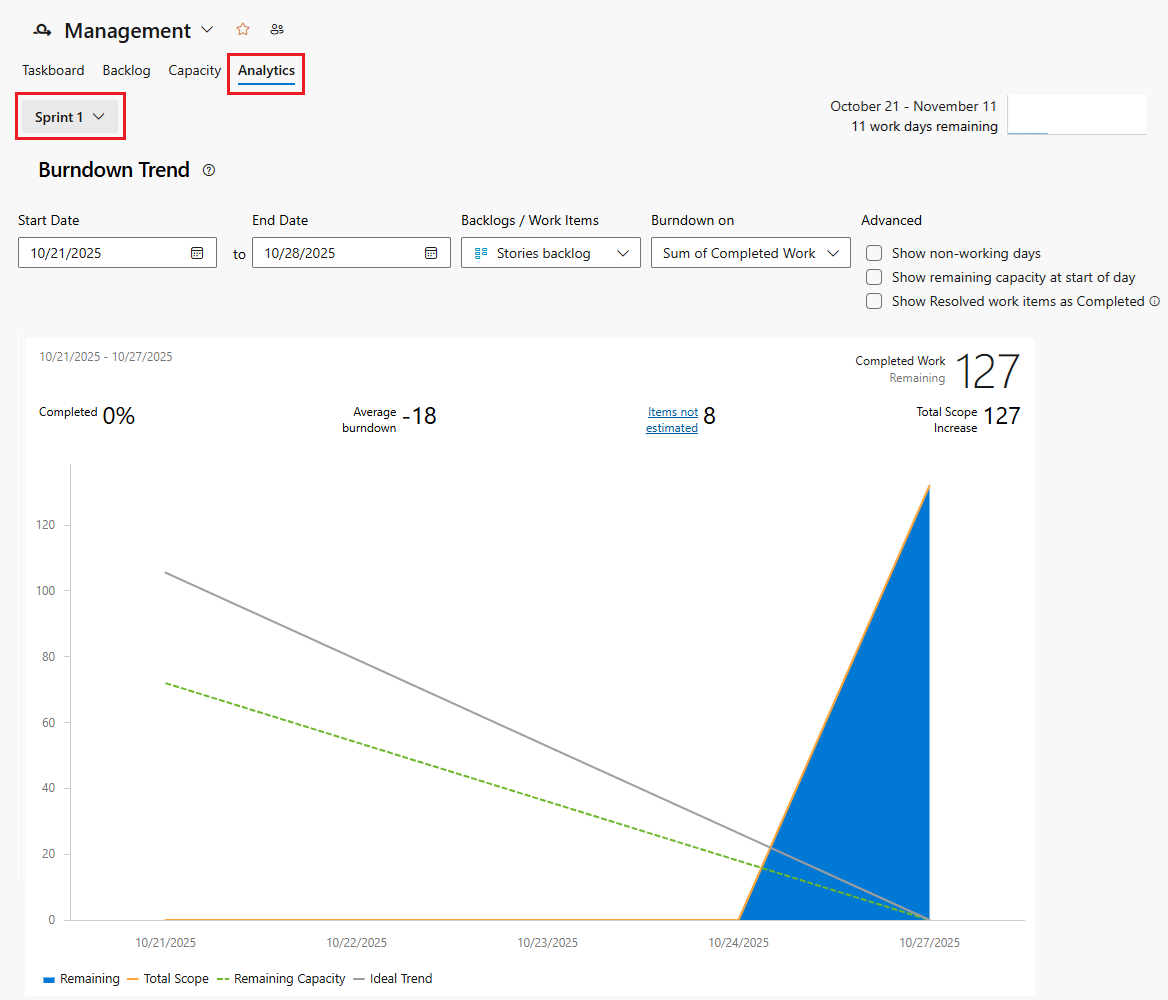
Running it: the taskboard under Boards and Sprints updates Remaining Work per task each day. The Capacity tab holds hours per day by activity for each member, plus individual and team days off, and it can copy the setup from the previous sprint. The sprint burndown runs on Remaining Work, so tasks must be estimated in hours, and it shows Total Scope Increase for items added mid-sprint.
Ending it: the velocity chart on the Analytics tab sums story points planned, completed and not completed, counts only items in an In Progress or Done state and works best when sprints have the same length. The forecast tool takes a velocity, for example 15, and shows how many sprints the backlog needs. Microsoft documents no built-in retrospective and points to a Marketplace extension. All of it is included at Basic access, but Stakeholder access can't set or view capacity.
- you plan sprints in hours: the Capacity tab takes hours per day by activity and days off per person
- you want the forecast tool to turn a velocity such as 15 into the number of sprints the backlog needs
- your team estimates only in story points: the burndown runs on Remaining Work in hours, so tasks still need hour estimates
- you need a retrospective board in the product: Microsoft's docs point to a Marketplace extension
- Users like
- one place for the whole software lifecycle, deployment integration, support (2 mentions each)
- Users dislike
- complex setup of advanced pipelines and permissions (2 mentions)
- Source: G2 (Azure DevOps Server), 201 reviews
- Starting price
- Basic free for the first 5 users, then $6 per user per month; Basic + Test Plans $52
- Boards hubs
- Work items, Boards (Kanban), Backlogs (product and portfolio), Sprints with Taskboard, Queries, Delivery Plans, Analytics views for Power BI
- Dashboards
- Configurable team dashboards with widgets plus Analytics service and Power BI reports
- Sprint capacity
- Sprint backlog and taskboard with capacity planning to see if the team is over or under capacity
- Process templates
- Four defaults: Basic (Epic, Issue, Task), Agile (User Story), Scrum (Product Backlog Item), CMMI (Requirement, Change Request, Risk, Review); base process cannot be changed after project creation but inherited processes can be customized
- Capacity
- Hours per person per day, Basic access
- Retrospective
- Marketplace extension
YouTrack
YouTrack
Sprint goal and burndown on three measures
YouTrack fits teams of up to ten people that want a sprint board with a goal, a burndown and a rollover setting at no cost.
Planning: the Scrum template switches sprints on by default and creates an unscheduled sprint, which you schedule by editing it to set a goal and dates. The backlog is a saved search of unresolved issues that aren't on the board yet, and you drag issues up or down to prioritize. Board order is visual only and doesn't change the Priority field. Estimates live in custom fields: the board settings pick a Current estimation field and an Original estimation field, and starting a sprint requires the board to track both.
Running it: columns follow a state field, and swimlanes show user stories with their subtasks as cards. The Chart tab draws the sprint burndown as ideal against remaining progress, and it can count issues, estimates or logged work items, with an issue filter that limits which cards count. A sprint ends automatically at 23:59:59 on its end date.
Ending it: when you create the next sprint, a setting adds the unresolved issues from the previous one, and Move to next sprint does the same for selected cards. JetBrains' help describes the burndown chart as the way to measure velocity, and the scrum pages show no separate velocity report, capacity view or retrospective board. Cloud is free for up to 10 users and starts at $4.50 per user per month billed yearly above that.
- your team has up to 10 people and wants a sprint goal, a burndown and rollover of unresolved issues for $0
- you want the burndown to count issues, estimates or logged work items, switchable per board
- you need a velocity report or capacity planning: the help pages describe the burndown as the velocity measure and show no capacity view
- you want to start a sprint without estimates: starting requires the board to track both the Original and Current estimation fields
- Users like
- adaptable workflows and boards, automation (each theme has 1 mention, so G2's summary is thin)
- Users dislike
- limited dashboard customization, weak email integration, export problems (1 mention each)
- Source: G2, 59 reviews

- Starting price
- Free up to 10 users; from $4.50 per user per month billed yearly ($5.40 monthly) above 10
- Free tier
- Cloud, up to 10 users
- Minimum seats
- None above the free tier: paid pricing applies to teams of 11+ users
- Agile boards
- Scrum, Kanban and hybrid boards; boards can also act as a simple alternative view of issues
- Sprints
- Sprint management with sprint name, goal and schedule editable at any time, archive and delete; backlog grooming; burndown chart on the board; cumulative flow for Kanban
- Backlog
- Saved search of unresolved issues
- Rollover
- Setting on new sprint; Move to next sprint
Linear
Linear
Auto-created cycles and automatic rollover
Linear fits product and engineering teams that want sprints, which it calls cycles, to create themselves and carry unfinished work forward.
Planning: you switch cycles on under Team Settings and pick a duration of 1 to 8 weeks, a start day, an optional cooldown and up to 15 future cycles. Linear creates the upcoming cycles on the repeating schedule, you can adjust future dates, and you can start the next cycle early. Estimates are opt-in per team with exponential, Fibonacci, linear (1 to 5) and T-shirt scales. With estimates off, the stats count every issue as one point.
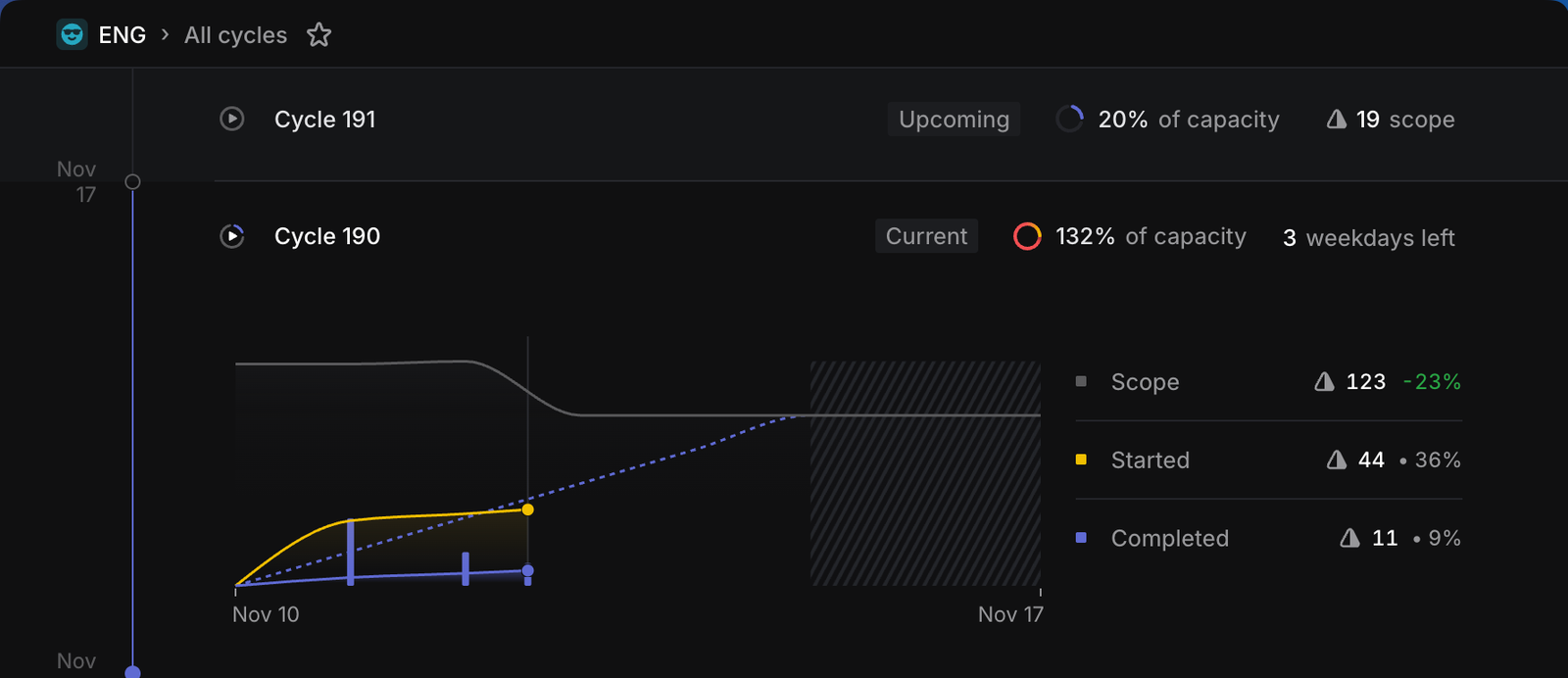
Running it: upcoming cycles show a capacity estimate based on the average of the previous three completed cycles, or a rough team-size estimate when there's no history. The cycle graph plots total scope as a gray line, a dotted blue target pace, completed issues as a solid blue line and started issues in yellow. Linear calls it a graph, not a burndown chart.
Ending it: unfinished issues in a closing cycle generally roll over to the next cycle. Issues moved to the backlog, triage, canceled or completed during a cooldown don't carry over. Insights on Business measure cycle time, lead time and issue age, but Linear's documentation names no velocity report, sprint goal field or retrospective board. Cycles are on every plan including Free, which caps a workspace at 2 teams and 250 issues.
- you want cycles that create themselves on a 1 to 8 week schedule and carry unfinished issues forward without a manual step
- you want the capacity estimate for the next cycle drawn from your last three completed cycles
- you need a sprint goal field or a retrospective board: Linear's cycle documentation names neither
- you plan to stay on Free: 250 issues and 2 teams fill up fast for a sprint team, and Insights starts on Business at $16
- Users like
- ease of use and a clean interface (33 mentions in G2's pros summary), fast performance, Slack and GitHub integrations (14)
- Users dislike
- limited features and customization (6 mentions), no epic management or advanced visualizations (5), limited analytics (5)
- Source: G2, 125 reviews
- Starting price
- Free (2 teams, 250 issues); Basic $10 and Business $16 per user per month billed yearly
- Free plan
- $0, 2 teams, 250 issues limit (pricing page)
- Cycles
- Listed on all plans including Free
- Insights
- Business and Enterprise
- Cycle length
- 1 to 8 weeks
- Estimate scales
- Exponential, Fibonacci, linear, T-shirt
ClickUp
ClickUp
Sprints on every plan, reports on Business
ClickUp fits teams that want sprints inside a general work tool and are willing to move to Business for the sprint reports.
Planning: a sprint is a List inside a Sprint Folder, created with the Sprints ClickApp. The folder default is two weeks, only owners and admins set the folder defaults, and members then create sprints. The backlog is a dedicated List in the folder, ranked with Urgent, High, Normal and Low priority plus any custom field such as a business value score, and tasks move in with Add to sprint. The Sprint Points ClickApp holds custom point values such as 1, 2, 3, 5, 8 and 13, with an optional subtask rollup, or you can estimate in time.
Running it: because a sprint works like a List, Board, List and Gantt views all work, and the Workload view shows each person's points or hours against a set capacity. A banner appears 24 hours before the sprint ends.
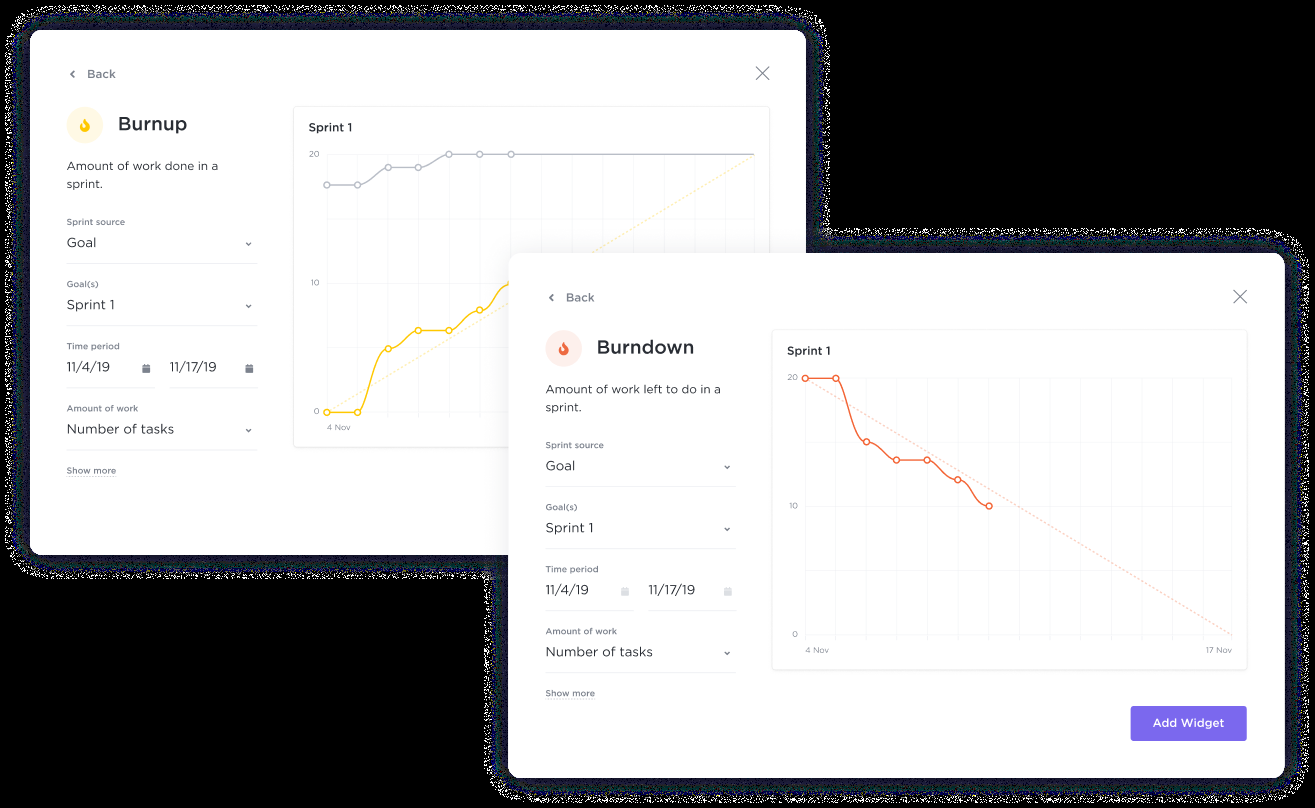
Ending it: closing a sprint prompts you to move unfinished tasks to the next sprint, back to the backlog or to close them. The Sprint Burndown, Sprint Burnup and Sprint Velocity dashboard cards, and the sprint automations that move tasks to the next sprint, create new sprints and archive old ones, need Business. The velocity card compares committed and completed points across 3 to 10 sprints. Sprint Points are not on Free and only trial on Core.
- you want sprints on the Free plan and the burndown, burnup and velocity cards once you reach Business at $17
- you want rollover, new sprints and archiving automated, which the sprint automations do on Business
- you need sprint points on a small budget: they're off the Free plan and Core only trials them
- you want a sprint goal field or a retrospective board: ClickUp's sprint help articles describe neither
- Users like
- flexible customization of workflows and views (1,601 mentions), centralized work in one workspace (1,415) and intuitive daily use (1,352)
- Users dislike
- a steep learning curve (778 mentions), a slow or laggy interface (764) and an overwhelming number of features (597)
- Source: G2, 15,779 reviews
- Starting price
- Free; Core $9 and Business $17 per user per month billed yearly; Max $100
- Board view
- Kanban Boards on Free Forever, subgroups (swimlanes) on every plan, WIP limits on Business and above
- Free limits
- 60 MB storage, Gantt, Dashboards and Custom Fields trial only
- Automations
- Actions per workspace per month: Free 100, Core 1,000, Business 10,000, Enterprise and Max 1M; webhooks, email, SMS and integration actions from Business
- Workload
- Trial on Free and Core, included on Business; custom capacity on Enterprise; Resource Management listed on Business
- Sprints
- Every plan
- Reports
- Burndown, burnup, velocity: Business
- Velocity window
- 3 to 10 sprints
monday dev
monday.com
Automatic sprints, Agile Insights, retros board
monday dev fits teams that want sprints to start and complete on their own, with a retrospectives board in the same solution.
Planning: a sprint is a group on the Tasks board, backed by a Sprints board, and you create it from New Sprint with a name, dates and goals. The backlog is a group of unassigned tasks that you drag into the sprint group. Estimated SP and Actual SP are number columns whose units you can switch to days or hours. Basic lists capacity planning and Standard adds sprint management with story points.
Running it: the Kanban view carries per-column work-in-progress limits, and each sprint has a Capacity feature fed by a hidden Capacity board. Basic also lists a daily stand-up feature.
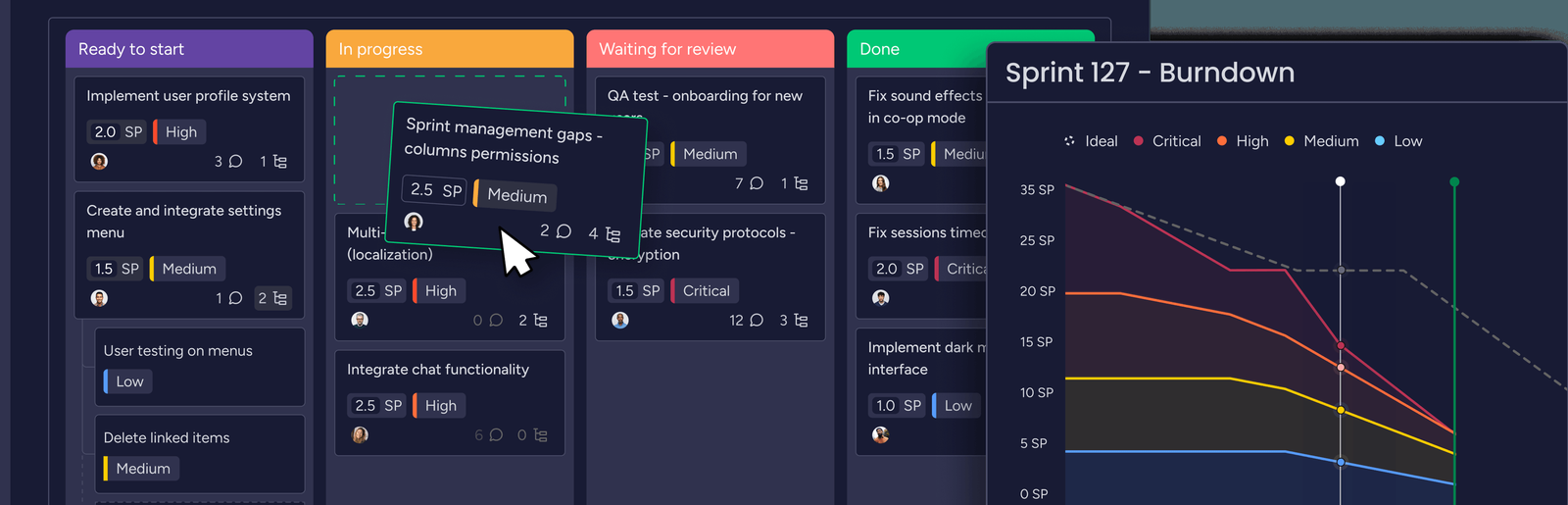
Ending it: with automatic sprint start and complete switched on, you choose what happens to leftover tasks: keep them in the completed sprint, move them to the next sprint or send them to the backlog. The burndown chart plots story points, hours or work days against plan, and the Agile Insights page adds a velocity chart and a planned against unplanned chart, but only for sprints started and completed automatically. Starting or completing a sprint by hand loses the summary, the burndown and Agile Insights. A Retrospectives board tracks action items. Sprint management depends on the prebuilt monday dev boards, and breaking their connections breaks it.
- you want burndown and velocity charts generated from sprints that start and complete automatically, with a Retrospectives board for action items
- you want leftover tasks routed to the next sprint or the backlog automatically when a sprint completes
- you need a free plan or fewer than 3 seats: monday dev starts at 3 seats with no free tier
- you plan to start sprints by hand: manual start and complete loses the burndown, the summary and Agile Insights
- Users like
- intuitive daily use (1,312 mentions), flexible customization of boards and workflows (797) and easy setup and adoption (630)
- Users dislike
- a steep learning curve (216 mentions), slow performance on large boards (172) and high pricing (170)
- Source: G2, 17,969 reviews
- Starting price
- Basic $9 and Standard $12 per seat per month billed yearly; 3 seats minimum, no free plan
- Kanban
- Available on every plan including Free; cards come from Status labels, per-column task limit via Set column limit, lanes via Divide by
- Workload
- Workload view on Pro and Enterprise; resource planner and capacity manager on Enterprise
- Dashboards
- Connected boards per dashboard: Free 1, Standard 5, Pro 20, Enterprise 50; total items under 20,000
- Seat rules
- Seats sold in buckets: minimum 3, then multiples of 5 (support article 4405633151634); quote above 40 users; Enterprise minimum term 12 months
- Currency note
- USD list prices as of 2026-11-15; the vendor lists the same numbers in euros by billing country (9, 12 and 19 per seat per month billed yearly)
- Retrospectives
- Built-in board
- Auto sprints
- Start and complete automatically
Zenhub
Zenhub
Planning poker and velocity on Free
Zenhub fits teams whose code and issues are in GitHub and who want sprints, planning poker and a velocity report without paying for them.
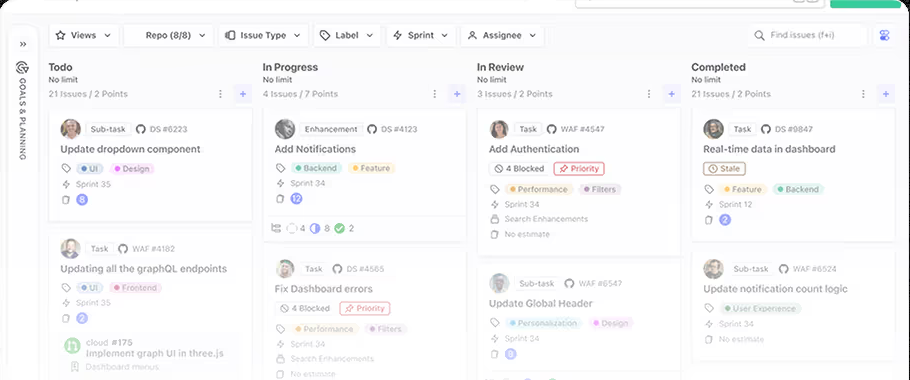
Planning: you create a sprint with Create and Sprints, set the first sprint's dates, timezone and cadence, with two weeks recommended, and Zenhub generates the recurring sprints and lists the next eight as Upcoming Sprints. The backlog is a pipeline of GitHub issues ranked by order, and Zenhub predicts which upcoming sprint a new backlog issue will land in based on average velocity. Story points are relative, planning poker is included on the Free plan and the results are averaged. A brief Sprint goal field holds the objective and key deliverables.
Running it: a setting that adds up to the first number of story points you choose recommends a sprint size from your average velocity. Progress updates when pull requests merge and issues close, because the issues are GitHub issues.
Ending it: an optional toggle moves unfinished issues to the next sprint, and without it they stay behind. The velocity report compares sprints side by side and averages the last 7 closed sprints, and the sprint report covers the last 10 closed sprints. The burndown counts only issues with estimates unless you configure Estimated Effort. Free covers 1 workspace, 2 repos and 250 issues, and Teams adds an AI sprint review.
- your issues live in GitHub and you want planning poker and a velocity report on the Free plan
- you want the backlog to show which upcoming sprint a new issue will land in, based on average velocity
- your tracker is Jira, GitLab or Azure DevOps: Zenhub manages GitHub Issues
- you want to compare more than 10 closed sprints in the report: older data needs a CSV export
- Users like
- the GitHub integration and the split between wishlist items and the true backlog
- Source: G2, 35 reviews
- Starting price
- Free (1 workspace, 2 repos, 250 issues); Teams $4.99 per user per month billed yearly
- Free plan
- 1 workspace, 2 repos, 250 issues; sprint reports, velocity report, planning poker
- Teams
- $4.99 per user per month billed yearly; 10 workspaces, 50 repos, 5,000 issues
- Enterprise
- Custom; GitHub insights, advanced reporting, on-prem self-hosting
- Planning poker
- Included on Free
- Velocity
- Average of last 7 closed sprints
- Tracker
- GitHub Issues
Plane
Plane
Open-source cycles with burn-down breakdowns
Plane fits teams that want an open-source tracker with cycles, a burn-down chart in the cycle view and GitHub sync, and that can pay from the Pro plan.
Planning: you switch cycles on under Settings and Features, then give each cycle a title and optional start and due dates, both or neither. A cycle without dates is a Draft, and the other states are Upcoming, Active and Completed. Cycles can't overlap unless parallel cycles is on. Estimates come as points on Linear, Fibonacci, squares or custom scales, as categories such as T-shirt sizes, or as time in hours, and time estimates need Pro. Free allows up to 6 custom estimate values.
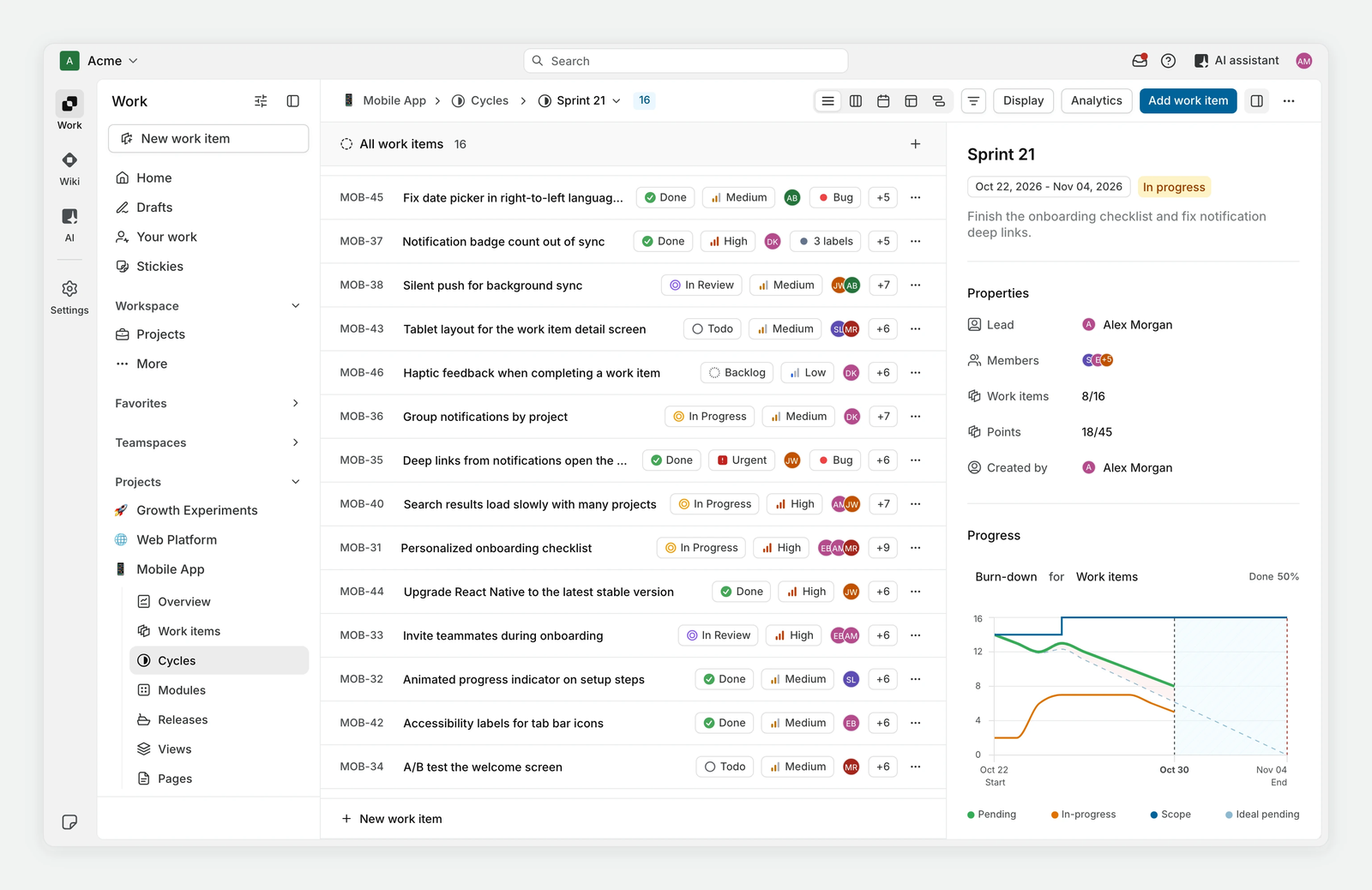
Running it: the cycle details panel shows a burn-down chart with breakdowns by assignee, state or label. Cycle progress charts that compare remaining work with ideal pace start on Pro. GitHub sync is also a Pro feature: GitHub issues with the plane label become work items, with an optional two-way sync of title, description, assignees, labels, states and comments.
Ending it: completing a cycle lets you leave unfinished work behind or transfer it to an upcoming or draft cycle by hand. Automatic transfer, and auto-scheduling with a base title, number of weeks, cooldown days and number of future cycles, need Business. The cycle docs show a title and an optional description only, with no sprint goal field, and Free caps a workspace at 12 users and has no integrations.
- you want cycle burn-down broken down by assignee, state or label, with GitHub sync, from Pro at $6 billed yearly
- you want auto-scheduled cycles and automatic transfer of unfinished work, which start on Business at $13
- you need integrations on the free plan: Free has none, so GitHub sync waits for Pro
- you want a sprint goal field: Plane's cycle docs list a title and description only
- Users like
- ease of use and a clean interface (7 mentions), friendly support (4)
- Users dislike
- missing features such as code linking and limited customization (4 mentions), limited reporting (2)
- Source: G2, 21 reviews
- Starting price
- Free (12 users); Pro $8 monthly or $6 billed yearly; Business $15 monthly or $13 billed yearly
- Seat limit
- Free: 12 users. Pro, Business, Enterprise: unlimited
- Cycles
- On all plans including Free; burn-down and build-up charts on the active cycle; Pro adds progress charts, early start or completion, workspace Active cycles page; Business adds auto-schedule cycles (1 to 30 weeks, auto-rollover) and auto-transfer; Enterprise Grid adds parallel cycles and manual advancement
- Modules
- On all plans; group work by feature or release with lead, dates, progress; list, gallery and timeline layouts; export is Pro
- Timeline and dependencies
- Pricing page row 'Dependencies in Timeline': No on Free, Yes on Pro, Business, Enterprise
- Cycle charts
- Pro
- Auto transfer
- Business
How to choose scrum software
Start with where the work already lives, since that's the cheapest thing to keep. A team that tracks issues in GitHub gets the shortest path with Zenhub or Plane. A team that already pays for Jira gets the sprint report, the velocity chart and the Jira review covers the rest of the product. A team that doesn't want to stay on Jira can start with Jira alternatives.
Then decide how you estimate and how much reporting you need. Hours-based planning points to Azure DevOps, story points with automatic cycles point to Linear, and a team that needs burndown and velocity on a small budget can start with YouTrack or Zenhub. Linear's importer doesn't carry Jira custom fields over, so teams that depend on them should test the migration on one board first. For capacity across teams, capacity planning software covers tools built for it.
- Create a two-week sprint, set a sprint goal and pull ten backlog items into it
- Estimate the items in the unit your team actually uses, story points or hours
- Add an item after the sprint starts and check that the burndown shows the added scope
- Complete the sprint with three unfinished items and see where they go
- Open the velocity or cycle report after two sprints and check that the numbers match your own count
- Find where the retrospective actions live and who gets reminded
- Check which of these reports sit behind a paid plan for your team size
- Check the minimum seat count and what happens to the price at your team size
Scrum software that hides carryover, unestimated items or a burnup line beside the burndown leaves the Scrum Master guessing mid-sprint, and scrum tools that rely on swimlanes alone can't show how much work was never sized. In a scrum trial, check carryover, unestimated items, cooldown gaps and undone work after each sprint, because a timeboxed sprint that carries overcommitment forward looks fine in a demo and fails in the second iteration. Run the trial on a real sprint, not on a demo project, because you'll learn more from one. The report that looks right on sample data often shows its limits only when an item is added mid-sprint or when sprint lengths differ.
Where a scrum tool stops and a program view starts
Each of these tools shows one team's sprint, and that's where they stop. A program has several scrum teams whose work depends on each other, often in different tools: one team in Jira, another in Asana, a third in a spreadsheet. A burndown can look healthy while a dependency on another team's sprint is about to slip a milestone, and no sprint report sees that. Jira's Premium adds cross-team dependency views inside Jira, and cross-project dependencies explains how to track them across tools.
Frequently asked questions
What is scrum software?
Scrum software is a project or issue tracking tool that supports the Scrum framework. It holds a ranked product backlog, creates sprints with fixed dates, shows the sprint backlog as a board and reports progress with a burndown chart, a velocity chart or both. Jira, Azure DevOps, YouTrack, Linear, ClickUp, monday dev, Zenhub and Plane all do this. In software engineering, the meaning of Scrum is a way to deliver working software in short sprints with a team that inspects its own progress.
Is there free scrum software?
Yes, several tools are free for small teams. YouTrack Cloud is free for up to 10 users, Azure DevOps Basic is free for the first 5 users, Jira is free for up to 10 users, Zenhub has a free plan with 1 workspace, 2 repos and 250 issues, Plane is free for up to 12 users and Linear's free plan covers 2 teams and 250 issues. Limits differ: Zenhub's free plan includes planning poker and a velocity report, while ClickUp keeps sprint points and the burndown and velocity cards on Business.
What is the difference between agile and Scrum?
Agile is a set of values and principles for building software in small steps with frequent feedback. Scrum is one framework that follows those principles, with fixed-length sprints, three accountabilities, five events and three artifacts. Kanban is another agile approach, and most scrum tools can also run a Kanban board. The 3-5-3 rule people quote for Scrum counts those parts: 3 accountabilities (Product Owner, Scrum Master, Developers), 5 events and 3 artifacts.
What is a sprint in Scrum?
A sprint is a fixed period of one month or less in which the Scrum team turns selected product backlog items into a usable increment. It starts with Sprint Planning, includes a Daily Scrum and ends with a Sprint Review and a Sprint Retrospective. Teams often use two weeks.
Which scrum tool has a built-in retrospective?
monday dev includes a Retrospectives board for action items. Jira offers to create a retrospective page in Confluence when you complete a sprint. Azure DevOps points to a Marketplace extension, and the other tools in this list leave the retrospective to a separate doc or whiteboard.
Is Scrum like Six Sigma?
No. Scrum is an agile framework for delivering a product in short sprints, while Six Sigma is a quality method that reduces defects and process variation with statistical measurement. A team can use both, but scrum software tracks sprints, backlogs and burndown, not Six Sigma control charts.